




Adobe Illustrator has never inspired the huge assortment of plug-in effects enjoyed by Adobe Photoshop users, but CValley’s FILTERiT collection has long provided an excellent assortment of Illustrator plug-ins. Version 4 of the $129 ($79 till 10/10/01) collection provides a number of amazing tools and should prove useful for anyone who uses Illustrator.
Though plug-in collections for all types of applications often include a number of cool filters, most plug-in effects are very specialized — not the sort of thing you’d use every day. FILTERiT certainly has a few of these, but what makes the package stand out is the predominance of effects that are truly utilitarian. If you’re a frequent Illustrator user, odds are you’ll find yourself regularly using FILTERiT’s tools if you give them a try.
Live, and in Color!
FILTERiT4 is a big collection, offering effects scattered throughout Illustrator. In addition to adding six tools to Illustrator’s toolbox, FILTERiT adds a number of filters to the Illustrator Filter and Effects menus.
FILTERiT’s most impressive tools, though, are its Live Effects, a collection of 13 filters that appear in the Illustrator Window menu. As with Illustrator’s built-in Brush Effects, you can go back and reshape or edit a path after you’ve applied a Live Effect without losing the effect. In addition, Live Effects are completely parametric: At any time you can change the parameters of any effect you’ve applied.
For example, consider FILTERiT’s Live Circle effect, which automatically creates copies of an object and distributes them around a circle.

After drawing our original arrow shape, we simply applied the Live Circle effect (using the Live Circle palette) to create the complete circle of arrows (see above). Any changes made to our original shape will immediately be repeated throughout the circle and we can use the Live Circle window (shown below) to change any of the parameters of the circle -– from the number of shapes to the size and offset of the circle. The question mark near the bottom of each FilterIt window leads to online help for that tool or effect.
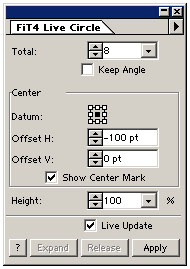
Finally, if we want to edit any of our duplicate arrows, we can simply Expand the object and Illustrator will render it as separate, editable shapes. All of FILTERiT’s Live Effects work this way, and multiple Live Effects can be added to the same shape. Here’s a quick rundown of all FILTERiT Live Effects:
Live Border This effect lets you create beveled border effects on any path, including text. And as with many Live Effects, you don’t have to convert your text to outlines, meaning your text stays editable even after you’ve applied the effect.

Live Border allows a number of powerful parameters including border shading controls, border size, and control of whether the bevel appears inside or outside the path.
Live Cutout This unusual effect creates a somewhat beveled, drop-shadowed appearance, but then cuts away the original shape so that only the shadow remains. The original object appears as if it has been cut out of the page.

Live Emboss This powerful embossing effect provides controls for light angle, contrast, and emboss depth. As with many Live Effects, a Steps parameter allows you to control how many intermediate objects are added to create the effect. Such control allows you to keep a handle on the size of your document.

Live Shadow Live Shadow is a simple drop-shadow filter with controls for shadow darkness, shadow distance, and the angle of the shadow-casting light source.
Live Neon Neon can automatically color a path with neon-like, glowing colors. As with several Live Effects, Live Neon uses the current fill and stroke colors for the boundaries of the gradient that it uses to create its neon effect. In addition to these color controls, you can adjust contrast, shadow, number of steps used to create the effect, and more.
This article was last modified on December 14, 2022
This article was first published on August 16, 2001
Commenting is easier and faster when you're logged in!

Recommended for you

Create Patterns With Adobe Capture CC
How do you create beauty? There’s the old fashioned way: First, create the...

Now Shipping: Complete Digital Photography, 7th Edition
CreativePro author Ben Long has announced the publication of his latest book, Co...

Frequency Separation Retouching in Photoshop
“Dammit, Jim, I’m a designer, not a rocket scientist!” I hear you cry. Well, bef...