




If your camera can shoot in the raw file format and you stick to the JPEG format, you’re hamstringing your own photography. Similarly, if you shoot in raw but don’t edit those files with an app that knows what to do what with all that extra information, you’re missing out on many ways to improve your images. Many standalone applications and plug-ins manipulate raw data, but Adobe’s Camera Raw is free — always a plus.
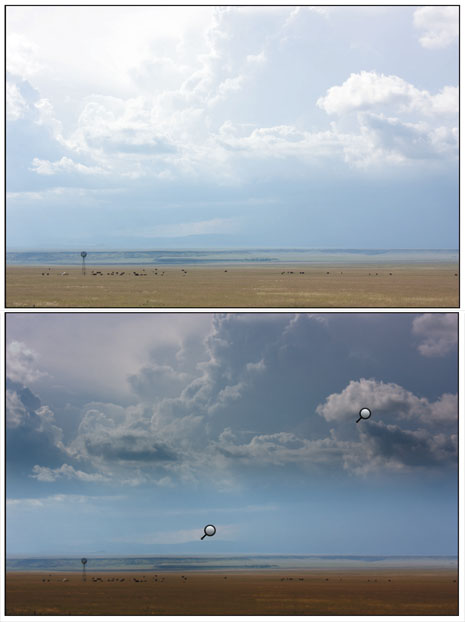
In this chapter from Getting Started with Camera Raw, you’ll learn how to take advantage of some sophisticated new capabilities in Camera Raw 5 that let you selectively brush on edits, so that you can easily constrain adjustments to specific parts of your image.
We’ve posted this chapter as a PDF file. Click the link “Selective Editing in Camera Raw” to open the PDF file in your Web browser. You can also download the PDF to your machine for later viewing.
To open the PDF, you’ll need Adobe Acrobat or Adobe Reader. Download the free Adobe Reader here.
To learn how to configure your browser for viewing PDF files, see the Adobe Reader tech support page.
The Adjustments Brush and Graduated Filter saved this photo from the trash can.
You can learn about Camera Raw — and all your other photographic concerns — while seeing the sites and eating great food during Ben Long’s Tuscan Photo Adventure.
Excerpted from Getting Started with Camera Raw: How to make better pictures using Photoshop and Photoshop Elements, Second Edition by Ben Long. Copyright © 2009. Used with permission of Pearson Education, Inc. and Peachpit Press.
This article was last modified on December 17, 2022
This article was first published on March 16, 2009
Commenting is easier and faster when you're logged in!

Recommended for you

Scanning Around With Gene: Profile of An Early Clip Art Character
The term “clip art” has become a generic description of any art, ill...
Seeing Patterns
An object lesson in how to analyze patterns and recreate them in your favorite a...
Do-It-Yourself Glitch Art
Here’s something perfect for a Friday, or any day when productivity isn...