



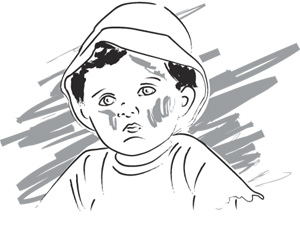
Creating or acquiring customized artwork has typically been time consuming and expensive. However, by combining Illustrator’s drawing capabilities with Photoshop’s painting tools and color technology, you can make your own professional quality illustrative portraits in no time at all and, better yet, free of charge.
Step 1: Set up your document.
To begin, select and if necessary scan in a photograph of someone you want to turn into an illustrated portrait. Create a new document in Illustrator. Then, choose File > Place to place the image on your new document, as shown in Figure 1. Next, go to the Layers palette, and lock the layer the image is on.

Figure 1
Note: When placing your image, don’t panic if a warning dialog box comes up with a message that says, Linked EPS files may not print accurately…. Normally you’d want to embed the file, but because we’re just using the photo for reference, we’ll never actually have to print it.
Step 2: Trace your image.
Make a new layer to work on. Using the Pen tool, carefully trace the basic features of the person, as shown in Figure 2. When tracing the image, you may want to consider creating separate layers for different parts of the portrait, as we did in Figure 3. This will help you stay organized.

Figure 2

Figure 3
Step 3: Make your strokes look more natural.
Select your entire illustration. Then, go to the Brushes palette and select the Fude brush. Upon doing so, all of your lines will become more organic looking based on your new stroke selection. Next, go to the Stroke palette and change the Weight to 0.25 points. Next, select a few areas within your illustration where you want added weight, such as the hair or shadows, and increase the stroke weight to 1 point or higher. At this time, you may also want to change the color of some of your strokes from black to gray, as we did in Figure 4.

Figure 4
Step 4: Add background texture.
Create a new layer. Using the Fude brush with a stroke of 1 point, scribble around your image in gray to frame it in, as shown in Figure 5. Now, save your Illustrator file.

Figure 5
Step 5: Export your image.
To open your image in Photoshop while preserving the layers, you have to export it. However, before doing so, delete the layer containing your actual scanned image in Illustrator. Then, choose File > Export. In the resulting dialog box, name your file, then select Photoshop (PSD) from the Format pop-up menu. Click Export. In the Photoshop Options dialog box, shown in Figure 6, change the Color Model to RGB if necessary. Select High (300 ppi) for the Resolution and make sure the Anti-alias and Write Layers check boxes are selected. Then click OK.

Figure 6
Step 6: Open your image in Photoshop.
Launch Photoshop, and choose File > Open. Then, select your newly saved PSD file. Save a flattened version of your layers in the same file and hide the original layers, as displayed in Figure 7.

Figure 7
Step 7: Choose your colors.
Now before you get started, select a color palette to work from, as shown in Figure 8. Once you have all of your colors set, create swatches for them for easy access, as shown in Figure 9. You can make a new color swatch by first selecting a color with the Eyedropper tool. Then, select New Swatch from the Swatches palette’s pop-up menu.

Figure 8

Figure 9
Step 8: Make your image look like a pastel drawing.
To give your strokes a painterly texture, choose Filter > Artistic > Rough Pastels. In the resulting dialog box, enter the settings shown in Figure 10. Click OK. Your image should now resemble that shown in Figure 11.

Figure 10

Figure 11
Step 9: Add color to the strokes.
The next step is to add a brown hue to the strokes to soften them up a bit. So, select a light peach (R=250, G=205, B=174) as your foreground color and then make a color fill adjustment layer in the Layers palette. Next, change the layer’s blending mode to Soft Light. Copy your color fill layer to intensify the color, leaving the layer’s blending mode set at Soft Light. Now, make another copy of the layer, but this time change the blending mode to Hard Light to bring more of the peach through. Figure 12 shows the process stepped out.

Figure 12
Step 10: Color it in.
When coloring in your illustration, it’s best to keep each colored area on its own layer so you can adjust it easily. So, create a new layer in the Layers palette and make sure you name it, otherwise things could get confusing. Also, change your layer’s blending mode to Multiply to make it transparent. Then, select a color from your custom Swatches palette and click on the Paintbrush tool. Select an appropriately sized round, feathered brush and paint in the area. Next, if necessary, lower the layer’s Opacity to lighten the color a bit, as we did in Figure 13.

Figure 13
Add tonal variations. To add variations of tone, make a new layer with the same blending mode and opacity and paint over certain areas, as demonstrated in Figure 14. Repeat as many times as you feel necessary in order to add form to your figure.

Figure 14
Test out different blending modes. Continue on in this fashion until you’ve colorized the entire image. As you’re adding color, you may want to try using different layer blending modes on certain areas. For example, when adding color to the child’s hair we applied an Overlay blending mode to darken it up, as shown in Figure 15.

Figure 15
Step 11: Create the eyes.
For the eyes, use this four-step process, shown in Figure 16. First, paint in the main color of the eye on a separate layer with a blending mode of Multiply. Then, on a new layer paint a brighter version of that color around the sides and base of the eye. Set this layer’s blending mode to Overlay. Make another layer and set its mode to Multiply. Now, paint a dark edge around the eye. Lastly, make a layer for the highlights. Leave this layer’s blending mode set at Normal and then paint in a few specks of white.

Figure 16
Step 12: Add color to the background.
When creating portraits, the background the image is placed on can help to tie together all of the colors in your image. So, rather than leaving the background scribbles a solid color, you can incorporate all of the colors from your palette into it. To do so, make a new layer and paint random blotches of color around your illustration, as shown in Figure 17. Then, change the layer’s blending mode to Overlay, making the colors gently wash over your original strokes, as shown in Figure 18.

Figure 17

Figure 18
Step 13: Enhance the color of your image.
Now, save a flattened version of your illustration. At this point, you can use this as your finished piece or you can add a few final touches. To deepen the colors of your portrait, copy the layer containing your flattened image in the Layers palette. Then, change the layer’s blending mode to Multiply. Now, make a layer mask and paint out any areas that you don’t want darkened, as shown in Figure 19.

Figure 19
Step 14: Add texture.
Finally, to give your portrait a more illustrious feel, you can apply a canvas texture to the final image, as shown in Figure 20. Flatten your image. Next, choose Filter > Artistic > Rough Pastels. Select Burlap from the Texture pop-up menu and adjust the other settings to your liking. Then, click OK. That’s all there is to it.

Figure 20
This article was last modified on February 16, 2023
This article was first published on April 25, 2003
Commenting is easier and faster when you're logged in!

Recommended for you

Turn a Photo into a Planet Using Photoshop
We’re all familiar with panorama photography, and you may have used Photos...

dot-font: Fun with the Push Pin Legacy
dot-font was a collection of short articles written by editor and typographer Jo...
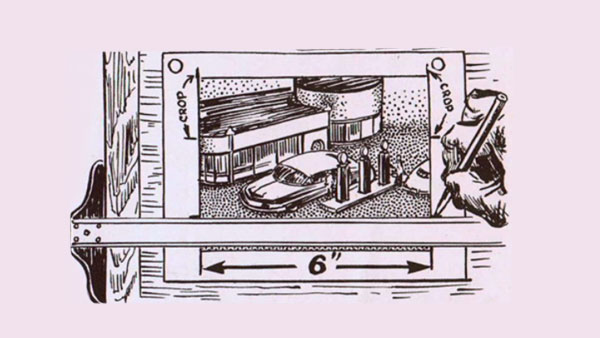
Scanning Around With Gene: The Old Way of Photo Retouching
Originally posted March 16, 2012 I’ve never been much of an artist, though I did...