


InDesign CS Tips: Creating Layout Standards



Anyone who works in page-layout applications know what a time-saver master pages are. Set up your page numbers, rules, headers, and other recurring elements once and see them applied to all the appropriate pages.
But if you’re new to InDesign you’ll soon see that InDesign has some special master-page features that you’re not familiar with, such as the Override all Master Page Items command.
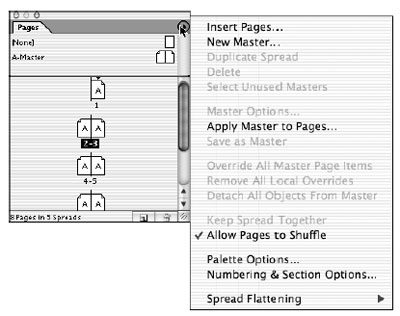
Master pages are only one way in which you can create a consistent look to your publication in InDesign. You can also create reusable page templates and graphic libraries.
In this excerpt from “Adobe InDesign CS Bible,” you’ll see how to work with master pages, templates, and libraries in InDesign.
We’ve posted this excerpt as a PDF file. All you do is click the link “Creating Layout Standards” to open the PDF file in your Web browser. You can also download the PDF to your machine for later viewing.
To open the PDF, you’ll need a full version of Adobe Acrobat (5 or higher) or the Adobe Reader, which you can download here:
 .
.
To learn how to configure your browser for viewing PDF files, see the Adobe Reader tech support page.
Excerpted from “The Adobe InDesign CS Bible” by Galen Gruman. Copyright © 2004 Wiley Publishing. All rights reserved. Reproduced here by permission of the publisher.
This article was last modified on March 10, 2025
This article was first published on December 3, 2004
Commenting is easier and faster when you're logged in!

Recommended for you

Adobe Reveals New Branding for InDesign and the Creative Cloud
Whoa! Adobe takes the Creative Cloud concept to the next level with new naming f...

Low Cost Superhero Design Elements
Superhero fever is in high gear right now and everyone I know is feeling its eff...

How to Work with Gradients in Photoshop
Learn how to master Photoshop’s gradients and see how easy it is to create and c...