


InDesign Tips: Controlling Line Breaks with the Hyphenation Slider


It’s a small detail but it reveals a lot about your page-layout skills. Bad line breaks and poor hyphenation can doom a design and interfere with the reader’s enjoyment of the text. Controlling H&Js in many programs involves entering numeric values to set line-break limits and hyphenation stacks — a not terribly intuitive process. InDesign 2.0 gives you those same controls, but also adds something called a hyphenation slider, which lets you adjust line length and hyphenation zones through visual feedback.
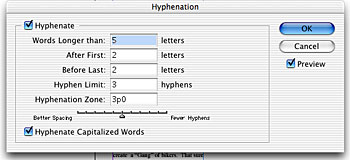
The hyphenation slider is one of those interesting little inventions hidden in the recesses of InDesign. This tutorial from InDesign evangelist Tim Cole shows you where to find and how to use the hyphenation slider.
We’ve posted this story as a PDF file. All you do is click the “Controlling Line Breaks with the Hyphenation Penalty Slider” link to open the PDF file in your Web browser. You can also download the PDF to your machine for later viewing.
We highly recommend Adobe Reader 6.0 or Acrobat 6.0 and above to view this PDF. Download the latest Acrobat Reader here.
To learn how to configure your browser for viewing PDF files, see the Adobe Reader tech support page.
This article was last modified on March 10, 2025
This article was first published on April 18, 2003
Commenting is easier and faster when you're logged in!

Recommended for you

Tip of the Week: Resizing Frames with a Click
This tip was sent to Tip of the Week email subscribers on April 2, 2015. Sign up...

TypeTalk: Script Typeface Dos & Don’ts
Script typefaces can be expressive, eye-catching, and fun to use, but if you are...

Sidewalk Serendipity
This article courtesy of the Adorama Imaging Resource Center, part of the Adoram...