


InDesign Tips: Dragging and Dropping into InDesign CS


One of the advantages of Adobe InDesign’s membership in the Adobe Creative Suite is its interoperability with other Adobe applications. That means you can drag and drop native Photoshop and Illustrator files directly into InDesign while maintaining all their attributes and editability.
But InDesign goes even further by allowing you to drag as many files as you like from the desktop and drop them into InDesign. That’s not all: You can also place text from Microsoft Word by simply dragging it from an open document into InDesign.
In this tip collection from Adobe InDesign Evangelist Tim Cole, you’ll learn how place text, graphics, and tables, from a variety of sources, into InDesign via simple drag-and-drop techniques.
We’ve posted this story as a PDF file. All you do is click the link “Dragging and Dropping into InDesign” to open the PDF file in your Web browser. You can also download the PDF to your machine for later viewing.
This article was last modified on March 10, 2025
This article was first published on May 28, 2004
Commenting is easier and faster when you're logged in!

Recommended for you

Pantone Sees Great Future in Plastic Chips
Press Release Pantone LLC announced the availability of large-format Pantone Pla...

The Type Project Book Excerpt: City Poster
See how to embrace your influences and borrow from them to make something totall...
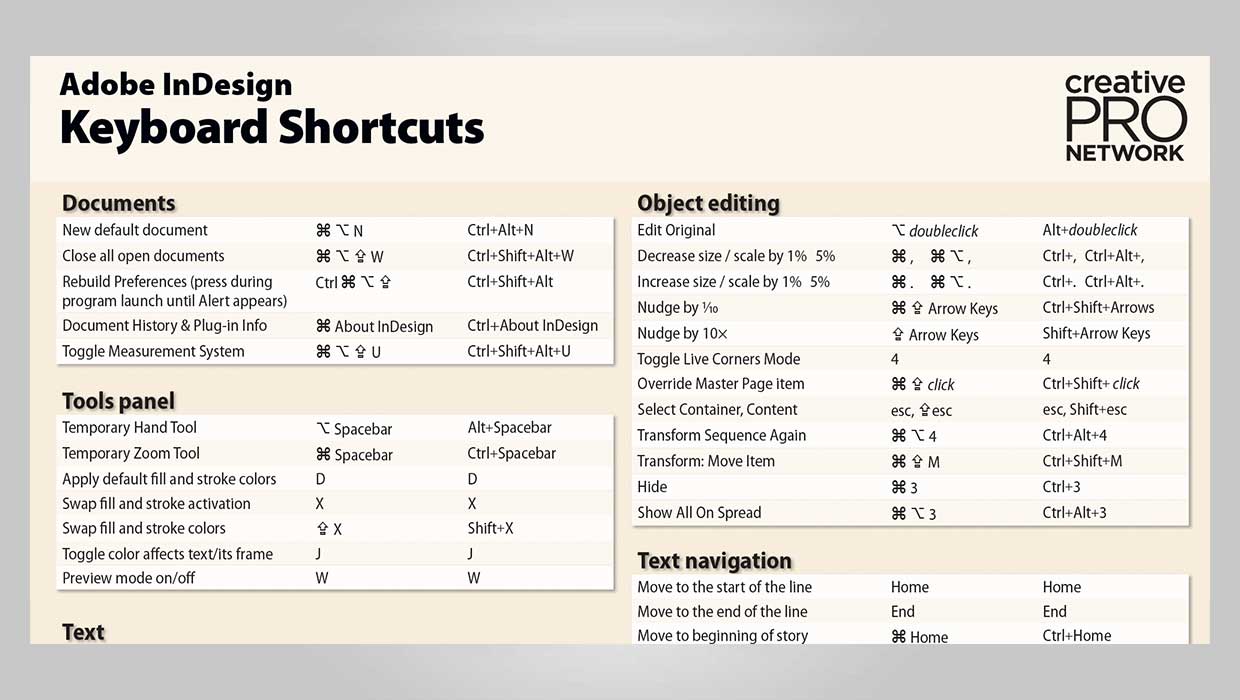
InDesign Downloadable: Keyboard Shortcut Poster
A PDF guide to essential keyboard shortcuts in Adobe InDesign