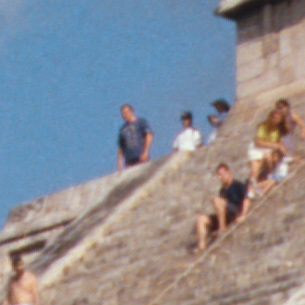
Kodak RFS 3600: Film Scanner With a Split Personality
Kodak probably has more sheer knowledge of imaging and imaging science, and more nifty technologies squirreled away in the back rooms, than just about any other company. But I and other Kodak watchers often find ourselves shaking our heads over the process by which the Great Yellow Father translates that knowledge and technology into products.
Over the years, Kodak has come up with rather more than its share of clockwork oranges, electric bananas, and other weirdnesses -- remember that the original plan for PhotoCD was that it would let people look at still images on their TVs. Viewed in the context of the Photo CD Player or the similarly ill-fated Disc Camera, the Kodak Professional RFS 3600 Film Scanner isn't at all bad, but it gives the impression of being a work in progress that's still trying to figure out what it wants to be when it grows up.
The schizoid appearance it presents to the world is mainly due to the fact that the scanner ships with two very different drivers. The Kodak RFS3600 Film Scanner V1.20 acquire plug-in seems to be aimed at fast automatic scanning of unmounted strip film. The other driver, a custom version of Lasersoft Imaging's SilverFast Ai, is an extremely full-featured scanning plug-in. Like the Kodak plug-in, it supports batch scanning, but that's not really its forte; its much richer feature set makes for a concomitantly much steeper learning curve. In truth, the main reason Kodak seems to have for bundling SilverFast is as a stopgap solution to the many acknowledged bugs in its own acquire module.
Despite the Kodak software's quirks and the somewhat daunting user interface of SilverFast Ai, the RFS 3600 is a capable scanner that can produce excellent results -- but so can many of its competitors. What makes the RFS 3600 stand out from the pack? Why would you choose it rather than competing scanners such as the Nikon Super CoolScan 4000 ED, the Microtek ArtixScan 4000t, or the Polaroid SprintScan 4000, to name but a few?
Did We Mention Free Film?
At $999, the RFS 3600 is priced comparably to the Microtek ArtixScan 4000t, and is considerably less expensive than the competing offerings from Nikon and Polaroid. To sweeten the deal, if you buy the scanner before January 31, 2002, you can get 100 free rolls of Kodak Ektachrome, Portra, T-Max, or Tri-X 35mm film (you can mix and match in blocks of 20 rolls).
The RFS3600 offers both USB and SCSI II interfaces. Scanning is much faster through the SCSI II interface than through USB. When connected via SCSI, the scanner itself becomes the bottleneck, since the interface can transfer the data as fast as the scanner can produce it. USB's slower transfer rate limits the speed with which you can scan. Scanning a full frame at maximum resolution takes a little shy of three minutes through SCSI, as opposed to about a quarter of an hour via USB.
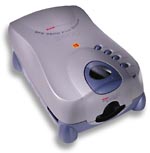
At 3600 pixels per inch (ppi), the RFS has a lower resolution than the competing scanners, which all capture 4000 ppi. (Of course, Kodak used to claim that a 2048-x-3072-pixel Photo CD image would capture all the detail from 35mm film.) In practice, thanks in part to excellent optics, the difference between the RFS 3600 resolution and the 4000 ppi of competitive products is quite small: 4000 ppi will produce a larger file, but we suspect that the vast majority of images scanned at that resolution won't reveal greater detail (see Figure 1).
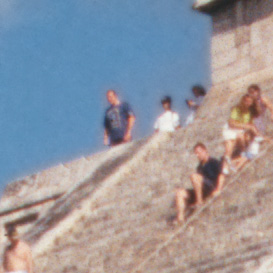

Figure 1: Figure 1a (top) shows a detail from a 3600-pixel-per-inch scan from the Kodak RFS 3600. Figure 1b (bottom} shows the same detail from a 4000-pixel-per-inch scan from the Nikon Super CoolScan 4000 ED.
Kodak claims a dynamic range of 3.6 for the RFS 3600. This seems distinctly conservative -- we were able to obtain very satisfactory shadow detail on slides, and on color negative scans the Kodak scanner actually produced less noise in the highlights than some competing scanners with higher dynamic range specs (see Figure 2).
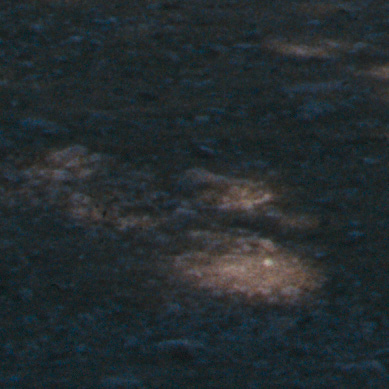
Figure 2: Figure 2a shows shadow detail from a slide scanned at default settings on the Kodak RFS 3600. Figure 2b shows the same area scanned at default settings on the Nikon Super CoolScan 4000 ED. Despite the narrower claimed dynamic range of the Kodak scanner, it produced more open, if slighly noisier shadows than the Nikon.
Note: To see images from the Kodak FRS3 3600 as uncompressed TIFF files: Click here for a scan of a film negative(1.84 MB); click here here for a scan of a slide (1.84 MB).
Flexible Film Handling
The single feature that differentiates the RFS 3600 from other scanners in this range is the film transport mechanism. It handles single mounted slides through a slot in the front like other scanners, but it also allows you to feed strips of unmounted film -- up to 36 frames -- directly into a slot in the side of the scanner, without using a film holder. Buttons on the top of the scanner let you advance the film one frame at a time, or nudge it in very fine increments (the frame advance is also available through software control from the Kodak plug-in.
It takes a certain leap of faith to insert an unprotected strip of film into a scanner, but the RFS 3600 behaved well. We didn't, however, try to scan an uncut roll of 36 frames: The scanner would probably have handled it perfectly, but it'd leave a long strip of unprotected film hanging out of either side, vulnerable to dust and scratches. If you plan to scan entire rolls of uncut film, give some thought to how you'll protect it.
Cluttered, But Quick
Kodak's scanner driver, which operates as a Photoshop plug-in, is clearly designed around the autofeed capabilities of the scanner. It allows you to scan single frames and mounted slides, but the small previews and fairly rudimentary controls are aimed at fast automatic scanning of batches of images. It scans positives about as well as other scanners in its class, but where it really excels is in scanning color negatives.
All the controls are found in a single somewhat cluttered window (see Figure 3), which would be overwhelming but for the rollover help that appears as you mouse over each button. You always have to perform a prescan of the first frame, whether you're scanning a single mounted slide or a film strip. (The controls might lead you to believe otherwise, but if you ask for a prescan of the whole strip, you get a message warning you that no autofocus has been done. If you ask for the auto-focus, you get a prescan of the first frame.) Once you've done so, you can set the crop and resolution, and make any desired edits to color balance, levels, or curves, and proceed to the main scan.

Figure 3: Nearly all the scanner controls are found in the rather cluttered main window of the RFS 3600 acquire plug-in. The rollover help that appears at lower left makes the plug-in easy to learn.
With strip film, you have the alternate option of performing a prescan on all the remaining frames on the film strip. The thumbnails for each frame then appear at the top of the window (see Figure 4). The prescans are pretty speedy -- even when connecting to the scanner through USB, each prescan takes about 10 seconds.

Figure 4: When you prescan a film strip, each frame appears as a thumbnail at the top of the window. You can set different scanning parameters for each frame by clicking its thumbnail, then setting the parameters.
Once you've done all the prescans, you can specify edits for each image by clicking its thumbnail. The plug-in offers a Color Balance panel and a Levels and Curves panel, each of which show a before and an after version of the image. They're pretty small, so there's a limit to the precision you can achieve. You can get a larger preview, but it simply magnifies the pixels in the prescan, so you don't see any more detail (see Figure 5).


Figure 5: The Color Balance and Levels and Curves panels show rather small before-and-after versions of the image.
For color management, the plug-in lets you specify your monitor profile (it doesn't pick it up automatically) and an output profile (which would normally be your Photoshop working space). The scanner comes with presets for most popular Kodak transparency and negative film stocks, but it doesn't let you use custom scanner profiles, which may be a problem if you scan a lot of non-Kodak media. On correctly exposed slides we found that we needed only minimal editing, if any, but with color negative scans we almost always needed to make significant edits to tone and color balance. Despite the relatively small prescan image, we found we were able to make good edits that produced very satisfactory final scans.
Lapses in Memory
But the Kodak plug-in isn't without its shortcomings and quirks. The scanner can capture 12 bits per channel, but the plug-in only delivers 8 bits to Photoshop. You can choose whether to have the plug-in process the 12-bit data from the scanner, or use only 8 bits for very slightly faster results. We found that the trade-off wasn't worthwhile, more because the speed difference was so tiny than from any major quality issues with the resulting scans.
A much bigger problem is that the Kodak plug-in leaks memory like a sieve. We found that if we refrained from rotating or sharpening images from the plug-in, we could make a maximum of 10 scans before the plug-in would provide a warning that insufficient RAM remained to continue scanning. Rotating or sharpening images brought the limit down to around 5 or 6 -- this on a machine with 1.5 GB of RAM. Needless to say, this puts a crimp in the fast automatic scanning scenario. Kodak has acknowledged the problem and is working on a fix for version 2.0 of the plug-in. They also acknowledge a cosmetic bug where, after exiting the plug-in while connected to a USB scanner, your Photoshop toolbox winds up looking like the one in Figure 6. (Choosing the tool restores the icon, but it's further evidence of some very sloppy programming on Kodak's part.)

Figure 6: Kodak remodels Photoshop's toolbox.
Mining SilverFast
Fortunately, the Kodak plug-in isn't the only game in town. Kodak has now begun bundling a version of LaserSoft's SilverFast plug-in with the scanner. SilverFast is an extremely full-featured scanner driver, with full color management support for canned or custom profiles, large prescans, and a complete suite of editing tools that includes selective color correction. It also lets you capture 12-bit data from the scanner for positive and monochrome, but not for color negative scans (see Figure 7).


Figure 7: SilverFast Ai is a full-featured scanner driver that offers large previews (top), an on-screen densitometer that shows before-and-after values graphically as well as numerically (middle), and advanced controls such as the Selective Color controls (bottom) shown here.
SilverFast supports batch scanning, but not as quickly or easily as the Kodak plug-in would if it worked as designed. To scan a film strip in SilverFast, you first need to make an overview scan, which records thumbnails of all the frames on the film strip. Then you need to make a prescan for each image -- and since the prescans are larger than those made by the Kodak plug-in, they take longer. They do, however, provide you with a much better basis for making edits to the scan.
SilverFast is a complex piece of software. It isn't hard to use once you've learned it, but that learning curve is quite formidable, and ascending the learning curve isn't made any easier by the distinctly Teutonic flavor of the PDF manuals. It does produce excellent scans on the RFS 3600, as it does on almost every scanner it drives, but it's not the best fit to the hardware in terms of exploiting the film-feed capabilities.
Did We Mention Free Film?
The one thing that the RFS 3600 has the potential to do better than other scanners in this range is to scan lots of negatives with a minimum of intervention, but until Kodak fixes the serious problems with its software, that capability remains only a potential. We'd be more excited by the RFS 3600 hardware if it included a FireWire interface rather than SCSI -- your current computer may have SCSI, but your next one may well not, and if it does, the SCSI bus will likely be dedicated to high-speed hard drives, where you probably don't want a scanner slowing things down. This is a decent scanner at a reasonable price point, but be very sure that its capabilities fit your needs before parting with your hard-earned cash.
Read more by Bruce Fraser.


Comments
Guest (not verified)
Mon, 05/18/2009 - 07:53
Permalink
none