



Color management is a topic that continues to confuse, bewilder, confound, and even enrage all too many innocent users. This is due in part to misleading hype on the part of vendors that present it as a magic solution to all color problems, and in equal part to software developers who insist on making their implementation of color management different from everyone else’s. But if you understand what color management systems actually do, it’s a lot easier to see through the hype — and to decode the dialog boxes that pop up to annoy you in your favorite applications.
Color management systems really do only two things: They describe the color of pixels, and they change the values of pixels to keep the color consistent across different devices. That sounds simple enough, but anyone who has played the great Japanese game of Go can tell you that very simple rules can create an extremely deep and complex set of behaviors. And so it is with color management.
Color management systems were designed to resolve issues like “why doesn’t the image my scanner captures look like the original when I display it on my monitor?” and “why does the image displayed on my monitor look nothing like what comes out of my printer?” (If you’ve never suffered from either of these problems, you can skip the rest of this column, but we’d all like to know your secret!). To understand how color management addresses these issues, we need to look at what causes them in the first place.
The Problem
Computers don’t understand color. Fundamentally, they are adding machines that juggle ones and zeros on demand. When we started using those ones and zeros to represent color on computers, we did so by creating digital equivalents of the RGB (red, green, blue) or CMYK (cyan, magenta, yellow, black) analog signals used to control the various color-capable computer peripherals, such as scanners, monitors, printers, imagesetters, and platesetters.
RGB and CYMK are each systems that in essence allow three or four primary colors to be blended to create a desired color. The strength of each component signal determines how much of the corresponding primary color is used. When we adapted RGB and CMYK for representing colors digitally, we simply used numbers (8-bit numbers, which allowed 256 levels) to represent the strength of each component value.
This system works fine when you simply want to make a specific device produce a color. Unfortunately, when you send the same set of RGB or CMYK values to different devices, they typically produce different colors. RGB and CMYK represent control signals rather than specific colors, and each device responds differently to the control signals.
If you’ve ever watched a bank of televisions in an electronics store or peered down the length of a 757 during the no-doubt-engrossing inflight movie, you’ve probably seen this phenomenon in action: Multiple monitors, all receiving the same signal, produce different colors. Why? RGB values modulate the strength of the electron beam that makes the monitor’s phosphors glow, emitting light, and each monitor responds differently to the control signals. Different vendors use different phosphor sets, but that’s only part of the problem. The phosphors wear unevenly, losing the ability to emit light, and the monitor’s brightness and contrast controls, which are set by the user, have a huge influence on the color the monitor displays. It’s not unreasonable to say that each monitor is unique. (Which also means that the images used in this story to demonstrate my point will also appear different on your monitor than it does on mine, but even if the representations aren’t exact, I think you’ll get the idea.)
For slightly different reasons, the same holds true for all our other RGB and CMYK devices. Scanner and digital camera filters change with age and differ from model to model, as do the light sources they use. CMYK may be even more variable than RGB: There are many different formulations of CMYK inks, toners, waxes, and dyes, all differing in their colors, and when you bring the paper into the equation, you encounter another huge variable, given that different papers interact with the inks in very different ways.
You can think of RGB and CMYK as recipes for making color, with the distinct R, G, B or C, M, Y, K values being the ingredients. As any cook can attest, ingredients vary, and that variation affects the final flavor of the dish. So it is with color: Yes, you can be confident that, say, R255, G255, B50 will create a shade of yellow, but that shade will certainly be different on different devices.
RGB and CMYK are often called device-specific or device-dependent color models, precisely because they really only produce predictable results for a given device. This is the fundamental problem that color management seeks to address. The second, more-obvious problem stems from the first: Color changes when we send our files from one device to another, so the color the scanner sees doesn’t look like the color we see on the monitor, which in turn doesn’t look like the color that comes out of the printer.
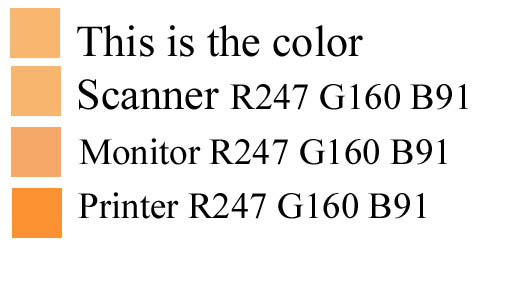
Figure 1: The scanner sees the color sample as R247 G160 B91. But when we send the same RGB values to the monitor, it’s slightly darker and more saturated. When we send those same numbers to the printer, it’s much darker and even more saturated.
This article was last modified on June 20, 2001
This article was first published on June 20, 2001
Commenting is easier and faster when you're logged in!

Recommended for you

Deadline Extended for Mac Design Conference Film Festival Entries
The entry deadline for the upcoming Mac Design Conference Film Festival is being...

Neenah Paper Updates Online Color Comparison Chart
Neenah Paper makes it easy to compare paper colors with its newly updated online...

This Week in InDesign Articles, Number 36
Lots of amazing links in this week's installment of InDesign goodies.