


Photoshop 7: Using Brush Shapes and Textures


Photoshop 7’s new Brushes palette is far more than simply a place to pick a brush. You have incredible control over the size, shape, and behavior of the brush. In this follow-up to “Understanding the Brushes Palette,” we’ll look at the Shape Dynamics and the Scatter panes of the Brushes palette. Then we’ll consider the palette’s Texture and Dual Brush panes.
Shape Dynamics
The Shape Dynamics pane of the Brushes palette controls three aspects of the stroke appearance: size, rotation, and perspective. The variations for each parameter are specified with sliders.
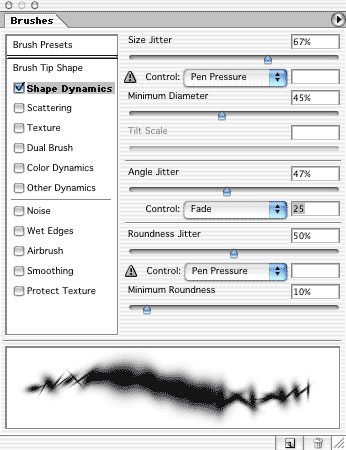
The Shape Dynamics settings are:
- Size Jitter: This slider determines how much variation there will be in the individual instances of the brush’s tip. At the maximum of 100% variation, instances of the brush tip can be as small as 10% (or smaller) of the diameter that you have set. In no case will Size Jitter create instances of the brush tip larger than the Diameter selected in Brush Tip Shape or the Master Diameter selected in Brush Presets.
- Minimum Diameter: You can constrain the size of the smallest instances using the Minimum Diameter slider.
- Tilt Scale: When the Control pop-up menu is set to Tilt, this slider regulates how much the angle of the stylus will affect the brush stroke.
- Angle Jitter: With non-round brush tips, the angle of application can be varied. The Angle Jitter setting determines the degree of variation. At a setting of 25%, the orientation of the brush tip with vary from -90 degrees to =90 degrees Remember that, by default, the angle is relative to orientation of the page rather than the path of the stroke – even if you drag a circular stroke, the variation in angle remains relative to the top of the image. Orient the brush tip to the path by changing the Control menu under Angle Jitter to Direction. (You don’t need to change the Angle Jitter from 0%.)
- Roundness Jitter: The Roundness slider controls variation in the proportion of a brush tip. When set to 0%, each instance of the brush has the same width-to-height relationship. As you increase Roundness Jitter, you add variation. At 100% jitter, the height of the brush instances will vary between approximately 5% and 100% of the size specified in the Brushes palette. Roundness never increases the height beyond that selected with the Diameter or Master Diameter sliders.
- Minimum Roundness: You can constrain the Roundness variations using this slider. It sets the smallest instance that the brush will produce when Roundness Jitter is activated.
Examples of the shape dynamics are shown here. For ease of identification, custom brushes were defined using numerals. In all cases, Spacing was set to 110%.
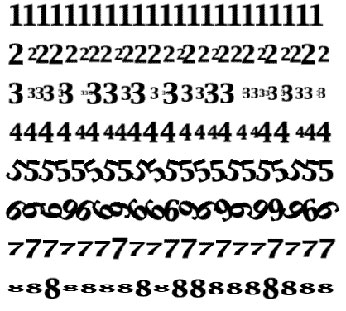
- The stroke has no shape dynamics applied.
- Size Jitter is 50%.
- Size Jitter is 100%.
- Size Jitter is 100% combined with a minimum diameter of 50%.
- Angle Jitter is set to 10%.
- Angle Jitter is 50%.
- Roundness Jitter is 50%.
- Roundness Jitter is set to 100%, with a Minimum Roundness of 20%.
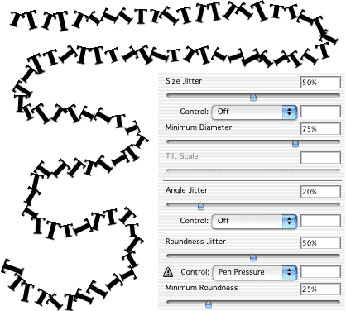
Note the difference between Roundness and Size jittering. With Roundness, the width of each brush instance remains the same — only the height is varied. When working with the dynamic brush options, think of the slider as representing the amount of variation or variety or change in the individual brush instances along the stroke, and the pop-up menu as the control for that variation. Combining Shape Dynamics settings produces more complicated patterns. However, once you understand what each option does, their interaction is more predictable. This stroke was created with the settings shown.
This article was last modified on January 3, 2023
This article was first published on June 25, 2002
Commenting is easier and faster when you're logged in!

Recommended for you
Set Them Free!
The other day I was working in Adobe InDesign, trying to reproduce a 1970s-era w...

Crafting Chromatically Rich and Luminous Images
“If all the world’s a stage, I want better lighting.” I couldn’t agree more with...
Using Bleed for Print Design
Based on an article originally published in the DesignGeek e-zine. One of the fi...