




One question that I receive on a fairly regular basis, is how to add bleed to an image or project in Photoshop. Both Illustrator and InDesign provide the ability to create a file that contains bleed marks that serve as a reference for you when designing your project. Photoshop on the other hand, seems to be conspicuously missing this feature. Although Photoshop doesn’t have a specific bleed setting that can be applied to a document, it can still be accomplished with a little bit of forethought and pre-planning.
What is bleed?
Bleed is a requirement specific to print jobs. You’ll never hear someone in the web or video industry ask for a file that contains bleed. Whenever you have a project where the final printed appearance contains ink that goes to the edge of the paper, bleed is required. The reason is that printing presses (and even most digital printers) cannot print to the edge of a piece of paper. In the case of a printing press, it technically can print to the edge of the paper, but the results will be poor. Ink will build up and create a big ink splotch at the edge of the paper. To avoid this mess, the project must be printed on a larger piece of paper that includes bleed (image area extended past the trim edge) and then trimmed down to produce the final product. If the project file doesn’t contain bleed, you run the risk of revealing a white sliver (blank paper) along the edge of the printed piece, which doesn’t look good at all. See the figure below for reference. I placed a black border around the project so you could see the white sliver. 
Planning
Regardless of the application you use, one of the first things
you need to determine is the finished size of the printed piece. Preferably you’ll do this at the very beginning of the project instead of at the end, because sometimes at the end of your project, you’ve already removed valuable image information that you would need to create the bleed. Standard bleed in the printing industry is 1/8″ but it’s a good idea to check with your printer to be sure. Some projects (like perfect bound books and banners) often require a larger bleed. When in doubt, ask!
Create the document
Begin by creating a new document in Photoshop to the trim size (final size) and resolution that you need. You can also begin with an existing project and implement the techniques that I describe here, but I find that it’s easiest to understand if you start with a new document. Make sure that rulers are displayed by choosing View > Rulers, and also make sure that snapping is enabled by choosing View > Snap. Click on the ruler and drag a guide to the edge of the document. The guide should snap to the edge of the document automatically. Do this for all four sides of the document. 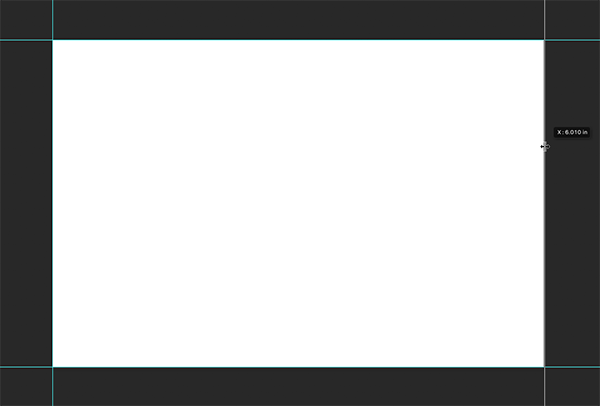
Create space for the bleed
Now increase the image size (document size) to the size of the project including the bleed. Using some basic math, you can determine that if your desired bleed amount is 1/8″ on all four sides, simply add 1/8″ to each dimension. In this example, we’re working with a 6″ x 4″ document so we’ll add the 1/8″ amount to all four sides to come up with 4 1/4″ x 6 1/4″. If your project requires more than 1/8″ bleed, simply add that amount. To achieve this, choose Image > Canvas Size and change to dimensions to the correct amount. Make sure that the anchor at the bottom of the dialog box is set to the center to force the document to add pixels from the middle out. Another option is to choose the relative checkbox and enter the amount that you want to increase your document by. In this case, it’s 1/4″. Your canvas extension color can remain the background color unless you want the added amount to be a different color. 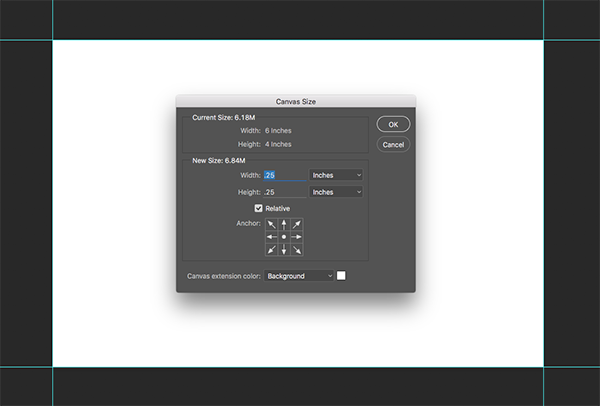 When you’re finished, you should end up with a document that is to the bleed size of your final project and guides indicating where the document will trim.
Building the project
Now that you have the foundation for the document created, simply build the document as desired using the guides as a reference point. Keep in mind that the final printed piece will be trimmed at the location of the guides in the Photoshop document. Anything that bleeds will need to extend past the guides (the trim edge) to the bleed edge. Feel free to use layers, shapes, and anything else that you normally use to produce the final product in Photoshop. I find Smart Objects to be particularly useful as they retain the original size of the content so you can adjust things later on. 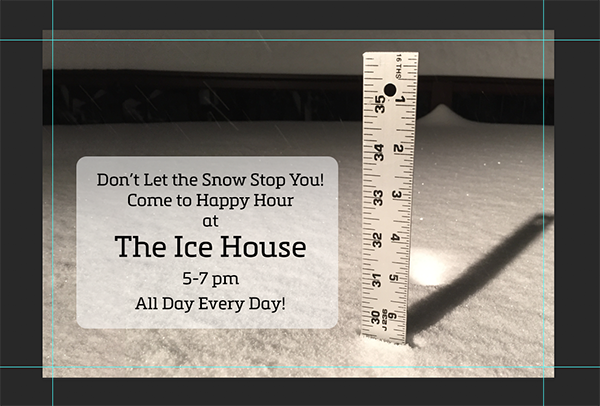 You can also make use of the new Artboards feature in Photoshop to make this process even easier but that’s for another post ;-)
What about trim marks?
The file that we’ve created so far is pretty much all the printer should need. However there might be times for one reason or another, that you’ll want trim marks that go along with the file that indicate exactly where the project should be trimmed. Because of how we prepared the file, we’ll simply make the canvas size even larger to provide room for the marks. Choose Image > Canvas Size and enable the relative button. Enter 1″ in the Width and Height dimensions and click OK. This will expand the canvas by an additional 1″ in both dimensions. Create a new layer for your marks and create a selection in the corner areas of the image using the Rectangular Marquee tool. You can do all four corners at the same time.  With the selections active, choose Edit > Stroke and apply a 2px stroke to the active selections. Deselect the active selections and hide your guides to view the crop marks applied to the project. In the figure below, I shortened the crop marks as my preference but you now have a project built in Photoshop that contains the correct amount of bleed and trim marks indicating where the final piece should be trimmed.
Commenting is easier and faster when you're logged in!

Recommended for you

How to Adjust Colors in Photoshop Using Hue and Saturation
Learn how to manipulate an image’s colors using Photoshop’s Hue and Saturation s...
How to Adjust Colors Using Photoshop’s Contextual Task Bar
Learn how to use the Photoshop Adjust Colors feature to make quick, non-destruct...

Why Your Print Workflow May Be Stuck in the Past
A Conversation with Adobe’s Mark Lewiecki on PDF best practices for print