


Photoshop How-To: Super-Smooth Skin


Here’s a technique for producing that absolutely, perfectly, flawlessly smooth skin. It’s not appropriate for all images, but when you need perfect skin, give this trick a try.
Photoshop’s Healing Brush copies texture. When we want perfect skin, we want smooth skin. What better tool to produce perfectly smooth skin than the Healing Brush? We simply need to give it some “smooth” texture from which to copy.
- Open your image. (We’re using PhotoSpin’s image #0370033 for this example.)
- Add a new layer.
- In an area away from skin you’re going to smooth, drag a rectangular selection. If there’s room, make the selection as large as the area of skin you’re going to smooth.
- Fill this selection with color, any color. (What is the texture of an area filled with a solid color? Smooth!)
- Deselect.
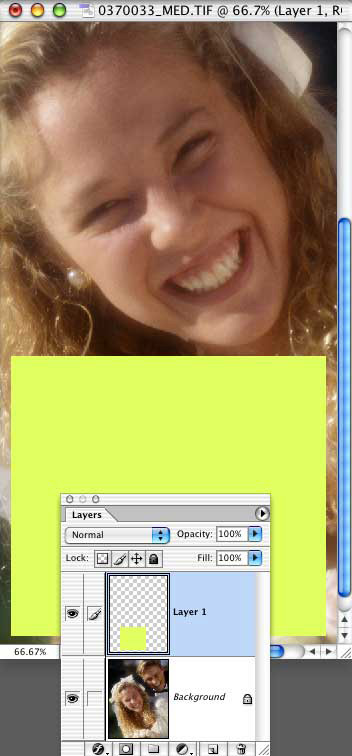
- Select the Healing Brush in the Toolbox.
- In the Options Bar, check the box “Use All Layers.” Do not select the Aligned option.
- In the Layers palette, make the image layer active.
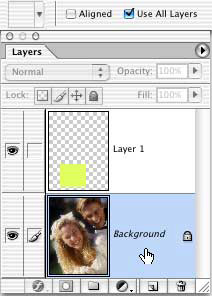
- Option-click (Mac) or Alt-click (Windows) in the center of the solid color area.
- Working from the center of the skin area you’re correcting, paint with the Healing Brush. Follow the contours of the face. Avoid areas of critical detail, such as eyes, eyebrows, and lips.
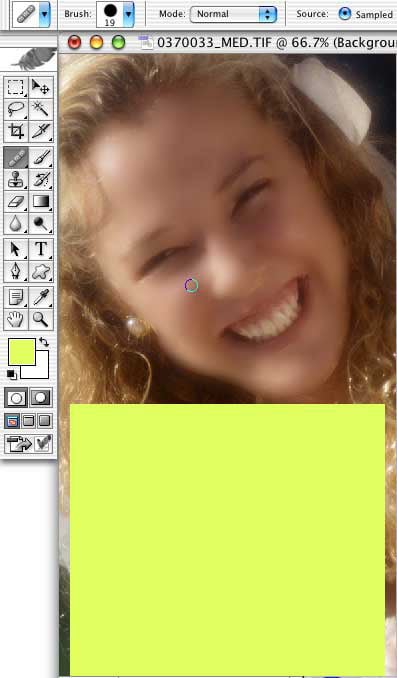
- When finished, delete the upper layer.
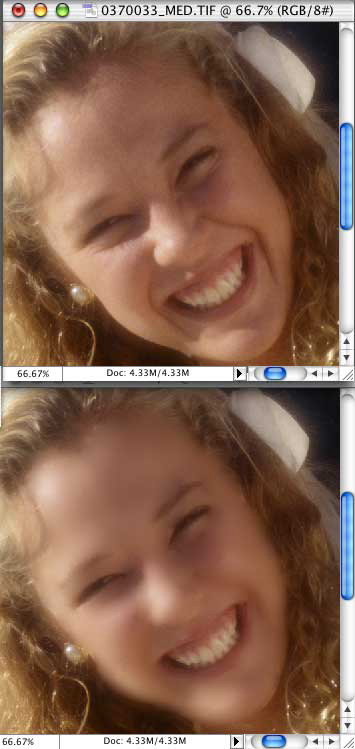
Compare the before (upper) and after (lower) images. Remember that you can use the History Brush to restore some detail. (And reducing the opacity of the History Brush enables you to compromise between smooth and detailed.)
TIPS
- If the image on which you’re working doesn’t have a lot of extra room for that rectangular selection, simply use Image> Canvas Size. Expand the canvas to 200%, adding canvas to one side or the other, filling with white. You then don’t need to add the new layer, just use the black area of the canvas as the source for the Healing Brush. After fixing the skin, crop or use Canvas Size to restore the original size.
- Since we generally make lots of short strokes with the Healing Brush, it’s a good idea to take snapshots in the History palette regularly as you work.
This article was last modified on January 3, 2023
This article was first published on March 16, 2004
Commenting is easier and faster when you're logged in!

Recommended for you

Free Photoshop Filters Webcast
It can be a lot of fun to experiment with Photoshop’s many filters to crea...

Heavy Metal Madness: The Family that Boats Together…
When I was four or five, my father decided to build a small speedboat in his gar...
Create an Amazing Escher-Like Face in Photoshop
The technique of “unwinding” a face was first explored by the Dutch...