


Photoshop How-To: Tame the Beast


Excerpted from Photoshop Workflow Setups: Eddie Tapp on Digital Photography, published by O’Reilly Media
Photoshop practically seethes with menus, palettes, and tools. If you get confused by how they work — much less how they should work for your needs — this article is just what you need. After you set up the general workspace so it’s efficient, using Photoshop will be a more pleasing experience.
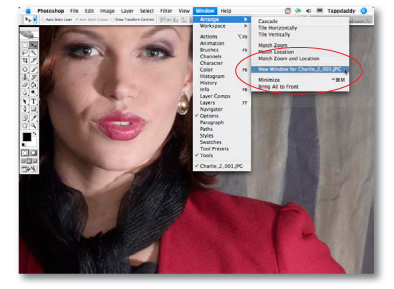
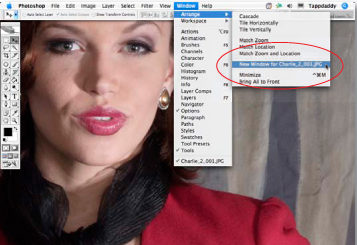
Photoshop opens a second window of your active image when you select Window > Arrange > New Window. It’s perfect when you want to do detail work and see the entire image at the same time.
This article is taken from a book that isn’t due to be on shelves until July. We hope you enjoy the sneak peek!
We’ve posted this excerpt as a PDF file. To open the PDF file in your Web browser, click “Workflow.” You can also download the PDF to your machine for later viewing.
To open the PDF, you’ll need Adobe Acrobat or Adobe Reader. To download Acrobat Reader click below:
 .
.
To learn how to configure your browser for viewing PDF files, see the Adobe Reader tech support page.
Copyright © 2006 Eddie Tapp. All rights reserved. Photoshop Workflow Setups: Eddie Tapp on Digital Photography, by Eddie Tapp. ISBN 0-596-10168-6. https://www.oreilly.com/catalog/photoworkflow/
This article was last modified on January 3, 2023
This article was first published on June 14, 2006
Commenting is easier and faster when you're logged in!

Recommended for you
Quick Solutions to 4 “Impossible” Adobe Problems
In my daily work (and as an Adobe Community Professional), I get asked a lot of...
CreativePro Tip of the Week: Identifying Fonts in Photoshop
This CreativePro Tip of the Week on identifying fonts in Photoshop was sent to C...

Image Editing in Lightroom 5: Correcting Overexposed and Underexposed Images
The following is an excerpt from The Adobe Photoshop Lightroom 5 Book: The Compl...