



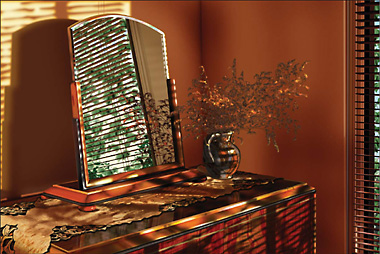

When you first see a Bert Monroy digital painting, you’ll be amazed by two things: first, that what you see is actually digital artwork; and second, that it was drawn entirely from scratch, not painted over a scanned photograph as is common. Monroy sees himself as an artist who paints with pixels rather than oils, and at first glance you’d be hard pressed to tell the difference.
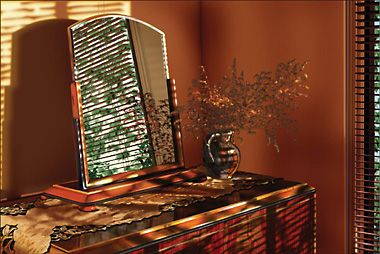
As with any painter, brushwork is key to Monroy’s success, and he exploits Photoshop’s new brush features whenever he can. Although Photoshop has let you make custom brushes for some time now, Photoshop 7 introduced the notion of Brush Presets, which gives you more control over the frequency and patterning of the strokes. Monroy uses them extensively when creating photorealistic foliage. In fact Adobe liked his grass and maple leaf brushes so much that they were included in Photoshop 7.
In this excerpt from his recent book, see how Monroy uses Photoshop 7’s Brush Presets to create lush, realistic-looking leaves and grasses.
We’ve posted this story as a PDF file. All you do is click this link “Putting the Brushes to Work” to open the PDF file in your Web browser. You can also download the PDF to your machine for later viewing.
To open the PDF, you’ll need Adobe Acrobat Reader.
This article was last modified on January 3, 2023
This article was first published on April 16, 2003
Commenting is easier and faster when you're logged in!

Recommended for you

Adobe Releases Free Photoshop Extension for Blending Colors
Adobe has released a new free extension for Photoshop CS6 that provides two new...

Managing Problems With Rotated Images in InDesign
Does anyone else have problems with poor previews of placed graphics in InDesign...

Knowing Your Camera: The First Step for Getting Better Results in Photoshop
Understanding the abilities of your camera and Photoshop can help you produce be...