



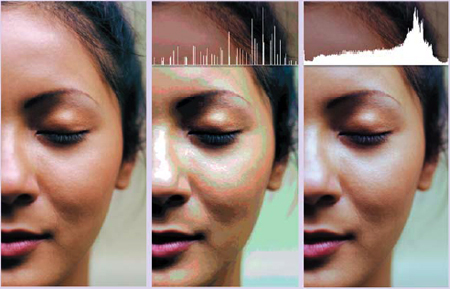

While Photoshop’s Color Balance feature may seem like the right place to go to correct an image’s color, your best bets are actually functions that don’t even have the words color or balance in their names.
Photoshop expert Deke McClelland will show you how to use Variations, Hue/Saturation, Gradient Map, and Camera Raw. You’ll neutralize an image with a widespread color imbalance, increase the saturation of a drab photo, colorize a black-and-white photo, and more.
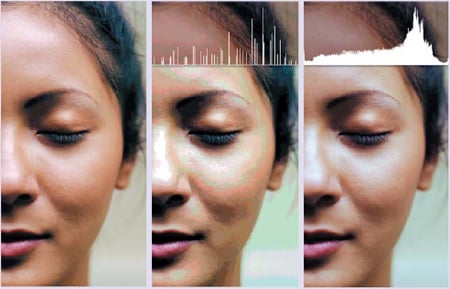
Which result do you prefer?
We’ve posted this excerpt as a PDF file. To open the PDF file in your Web browser, click “Color.” You can also download the PDF to your machine for later viewing.
To open the PDF, you’ll need Adobe Acrobat or Adobe Reader. To download Adobe Reader click below:
https://www.adobe.com/products/acrobat/readstep2.html
To learn how to configure your browser for viewing PDF files, see the Adobe Reader tech support page.
Copyright 2006 Type & Graphics, Inc. All rights reserved. “Adobe Photoshop CS2 One-on-One,” by Deke McClelland. ISBN 0-596-10096-5. Used with permission from the publisher. This book is available from booksellers or direct from O’Reilly Media, www.oreilly.com
This article was last modified on January 3, 2023
This article was first published on July 26, 2006
Commenting is easier and faster when you're logged in!

Recommended for you
Photoshop Week 2014
Any time is a great time to expand your Photoshop knowledge, but you might want...

Creating Rounded Text in Illustrator
Rounded text is great for adding a soft, human look to text, and is a good solut...

How to Make a Terminator Robot Effect in Photoshop
Arnold Schwarzenegger’s iconic robotic endoskeleton was a defining feature...