




While the phrase “the pen is mightier than the sword” is dubious advice for many practical situations (fending off invading barbarian hordes, etc.), the phrase “the pen is mightier than the mouse” is almost always true when you’re talking about digital painting and graphics work. Wacom Technologies has long been the market leader for pressure-sensitive graphics tablets, thanks to their innovative tablet design and excellent battery-free, cordless pen.
The Cintiq 21UX ($2,499 street, $2,999 list) is the latest and largest of the company’s screen/tablet combinations. Like the smaller Cintiqs, the 21UX combines an LCD screen and a pressure sensitive tablet to create a surface you can paint on directly using a Wacom pen. The Cintiq 21UX is a more intuitive, natural interface for drawing and painting than any other input device. Whether it’s right for you, though, depends a lot on your working style. You might find that “intuitive and natural” are not the best choice for how you like to work.
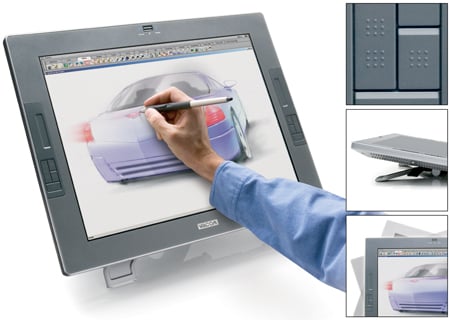
The Wacom Cintiq 21UX
Same Design, Larger Size
The 21UX follows the same design as Wacom’s previous 17″ Cintiq. You can easily adjust a solid metal stand that comes with the tablet to incline it anywhere from 10 degrees to 65 degrees. The tablet is roughly 5″ thick and measures 21.1″ x 16.5″ inches. It weighs 22 pounds. A sturdy round tab protrudes from the middle of the back of the tablet and slides easily in and out of a corresponding socket on the Cintiq stand.
The screen itself measures 17″ x 12.75″ with a resolution of 1600 x 1200 pixels (UXGA). A single cable at the back of the tablet splits into a power and video cable. Wacom provides all the adapters you need to connect the Cintiq 21UX to VGA, DVI-D, and DVI-I ports, meaning you should have no trouble connecting the Cintiq to just about any type of graphics card.
The Cintiq 21UX ships with a Grip Pen, a rubberized fat-barreled pen that provides 1,024 levels of pressure. The pen has a two-way rocker switch on the side and an “eraser” on the top. Like the nib, you can program the eraser to automatically switch to the tool of your choice.
In addition to pressure-sensitivity, the Grip Pen also includes tilt and bearing sensitivity. If you’re using applications that support these features (such as Adobe Photoshop), you can control brush size and shape by how hard you press the pen and how far you tilt it. Wacom includes a copy of its Brushes 2 collection of Photoshop brushes that are specifically designed for the pen. In addition to the included Grip Pen, the Cintiq 21UX also works with Wacom’s Airbrush, Ink, and Classic pens.
The Cintiq 21UX ships with drivers for Windows XP and 2000, and Mac OS X 10.2.6 or higher. Wacom also bundles Adobe Photoshop Elements 3, Corel Painter Essentials 2, and nik Color Efex Pro 2 IE with the Cintiq.
Screen As Far As the Eye Can See
Like all Wacom tablets, the Cintiq is easy to set up, driver installation is a snap and, on the Mac, doesn’t require a restart. No special calibration is required, and the tablet is ready to go as soon as the driver installation is complete.
You can use the Cintiq 21UX as your primary display, or as a secondary monitor, which is how I tested it, driving it from my 15-inch PowerBook. As with any additional monitor, you must tell the operating system how the monitors are physically arranged, so that your computer knows how to wrap graphics from one screen onto another. However, if you’re using your mouse on your primary screen, when you touch the stylus to the Cintiq screen, the cursor will automatically jump screens to your pen location.
Wacom’s early pen/tablet combinations had trouble with parallax between the tip of the pen and the surface of the screen. Because the surface of the tablet was covered by a thick glass plate, the pen was noticeably removed from the drawing surface. The 21UX doesn’t suffer from this problem. The front of the screen is directly below the drawing surface, making it feel like you’re truly drawing directly onto the LCD.
However, because the screen is so big, you’ll often be looking at the pen and screen surface at extreme angles, which can make the cursor appear to be out of registration with the pen tip. Registration is actually fine, as you can see if you re-position your head directly behind the pen. At first, I found this distracting, but once I got in the habit of focusing on the on-screen cursor rather than the tip of the pen, it didn’t matter that the two didn’t line up perfectly. This is the only downside of having so much screen real estate. The upside, of course, is that you can open huge windows and work at extreme magnification levels with no bothersome scrolling.
This article was last modified on December 14, 2022
This article was first published on July 5, 2005
Commenting is easier and faster when you're logged in!

Recommended for you

Work That Text: The Power Behind Typographic Collages
Direct Impact The principal reason for the presence of copy in a piece of design...

Top New Features in Photoshop
A little over a week ago, Adobe rolled out updates for Photoshop, Muse, and the...
Photoshop CS6 updated
Adobe has released an update to Photoshop CS6 (version 13.0.1) that fixes a tota...