




This may sound familiar: You’re in the midst of building a fairly complicated Illustrator document when you find yourself spending more time trying to select your objects than manipulating them. Selecting objects positioned on top of each other in Illustrator can be quite a challenge, if not downright annoying at times. Fortunately, Illustrator offers up a complete arsenal of tools and commands devoted to helping you select the object you want while keeping the others out of your way.
A Broad Selection of Selection Tools
Illustrator’s toolbox includes five tools just for selecting: Selection tool, Direct Selection tool, Group Selection tool, Lasso tool, and Magic Wand tool. The Selection and Lasso tools are pretty self-explanatory, and the Direct Selection tool is mainly used to edit an object’s points and paths. If you have a group of objects within other groups, you can sequentially select and add the next group in the hierarchy by using the Group Selection tool, which can be found in the Direct Selection tool pull-out. The Magic Wand allows you to select objects with similar appearance attributes.

You can find all of the selection tools at the top of the Illustrator toolbar.
All of these tools perform well in their own right, but they can seem rather limited when you attempt a more complex task such as selecting an object obscured by another. This is where the Next Object command comes in handy.
To select an object below another object, do the following:
- Position the Selection tool over the object that is above the one you want to select.
- Right-click to open the contextual menu (don’t move your pointer as you do this) and choose Select > Next Object Below. Keep in mind that this command only works within one layer. If you are trying to select between multiple layers, try using the Layers panel.
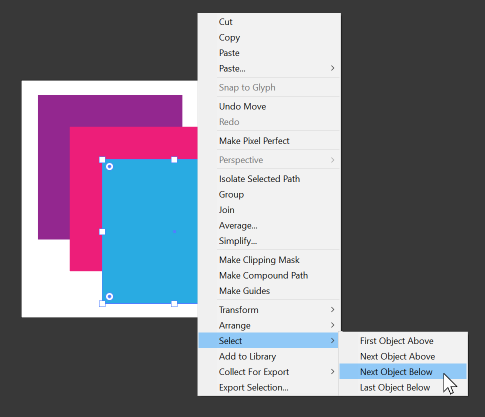
The contextual menu offers up a Select submenu for getting at those hard-to-reach areas.
Lock ’em or Make ’em Disappear
Two of the most useful tools for isolating selections are the Lock and Hide commands. Both commands have been around in virtually their present form since the earliest incarnations of Illustrator. In fact, it would be tough to find any old-school Illustrator user who doesn’t rely on these two commands just as much as the Pen tool. Their usefulness is found in the sheer simplicity of what they do.
The Lock command makes objects visible but unselectable. To lock an object or series of objects, simply select the objects and then choose Object > Lock from the main menu. Here you’ll have choices to lock your selection, lock all of the artwork above your selection, or lock all other layers.
The Lock command is a great, in-the-moment method to quickly get objects out of your way, but an even more powerful option lurks just a little-known key combination away: Select the object you want, and press Command+Shift+Option+2 (Mac) or Ctrl+Shift+Alt+2 (Windows), and all other objects on the page will be locked. This allows you to concentrate your efforts on the objects selected. When you’re ready to select those objects again, choose Object > Unlock All.

The Lock and Hide commands are under the Object menu, but the keyboard shortcuts are fairly easy to remember.
The Hide command works in a similar fashion as Lock but instead makes the objects invisible and unselectable. To hide selected objects, choose Object > Hide Selection from the main menu. A companion command for the lock all deselected artwork exists as well: Try Command+Shift+Option+3 (Mac) or Ctrl+Shift+Alt+3 (Windows) to hide all unselected artwork.
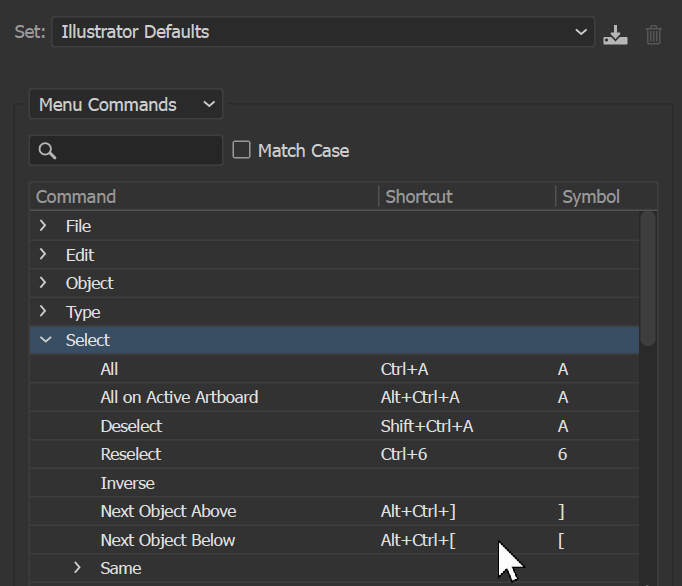
Power users may want to master the keyboard shortcuts for Next Object, as well as for the Lock and Hide Others commands.
Layers Are Your Friends
Layers provide a level of organization that can make your life easier. Not only do layers provide hierarchical organization and selective displaying and printing of objects, they also provide a great way to quickly select and edit specific objects. While using the basic hide and lock features can work well in simple documents, when working with more complex files, layers give you more control and insight into your file organization. You can also lock or hide entire layers as another method to isolate the art you are currently editing.

The Layers panel shows all objects in your document organized by layers and groups.
A complete list of all the objects in your document is available, and objects and groups appear as sublayers to their originating layer. Although this may seem like overkill to some, it provides a great way to get to a path nested deep below several other paths. If it all becomes too much for you, you can always turn off these options within the Layers Panel Options found in the panel menu.

Layers Panel Options lets you control how much information the Layers panel gives you about objects.
Locking, hiding, previewing, and selecting objects within the Layers panel can all be done using a few simple mouse clicks or keyboard shortcuts.

The Layers panel offers numerous possibilities for easily selecting, hiding, or locking down your layers.
- To lock a layer or sublayer, click the empty box beside the eye icon. A padlock should appear. Click it again to toggle locking.
- To lock all layers except the layer you wish to isolate, hold Option (Mac)/Alt (Windows) while clicking the toggle lock area.
- To hide a layer or sublayer, click the eye icon.
- To hide all layers except the layer you wish to isolate, hold Option/Alt while clicking the eye icon of the layer.
- To set a layer to Outline view, Command/Control-click the eye icon of the layer.
- To select all objects on a layer, hold Option/Alt while clicking the layer name or thumbnail.
This One and These Three, But Not Those Others
OK, let’s say you just finished a design in Illustrator, and after printing it becomes clear that all the stroke weights on certain similar objects are too thick. You want to make the adjustment but dread picking through all 42 objects and changing the line weight. Don’t despair: Illustrator includes a set of handy commands for such circumstances.
Tucked away in the Edit menu is the inconspicuous yet powerful Select menu. You can easily locate and highlight objects that share similar characteristics such as fill or stroke color, stroke weight, blending mode, opacity, and other attributes.
Follow these steps to use the Select submenu:
- Select a color swatch, style, or object that represents the type of objects you are trying to select.
- Choose Edit > Select > Same > Fill Color or any of the other choices that pertain to what you are attempting to select. All the objects should then be selected, allowing you to change their shared settings collectively.

The Select command, found in the Edit menu, can help you select similar items effortlessly.
Making selections is certainly one of the fundamental tasks when working with any application, and Illustrator is the sort of application in which you can quickly get lost in your own artwork. Adobe has outfitted its star illustration program with a powerful set of tools and commands to help you through nearly any selection challenge. Taking advantage of Illustrator’s selection tools and using layers and the Lock, Hide, and Select commands can go a long way toward making your job just a little bit easier.
This article was last modified on June 26, 2023
This article was first published on May 1, 2001
Commenting is easier and faster when you're logged in!

Recommended for you

Building an Underwater Scene in Photoshop, Part 1
The Oscar-winning film The Shape of Water opens with a stunning sequence in whic...

Bit by Bit: The Ins and Outs of Variable-Data Printing for Designers
In last week’s column, I suggested that variable-data printing is a gold m...

This Week in InDesign Articles, Number 46
If I could walk 500 miles, I would be the one who brought these articles to your...