


This tutorial is courtesy of the Russell Brown Show.
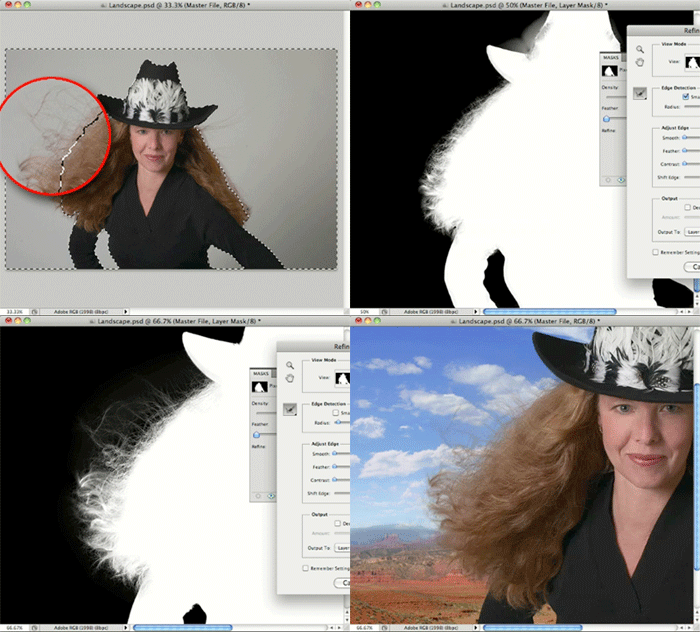
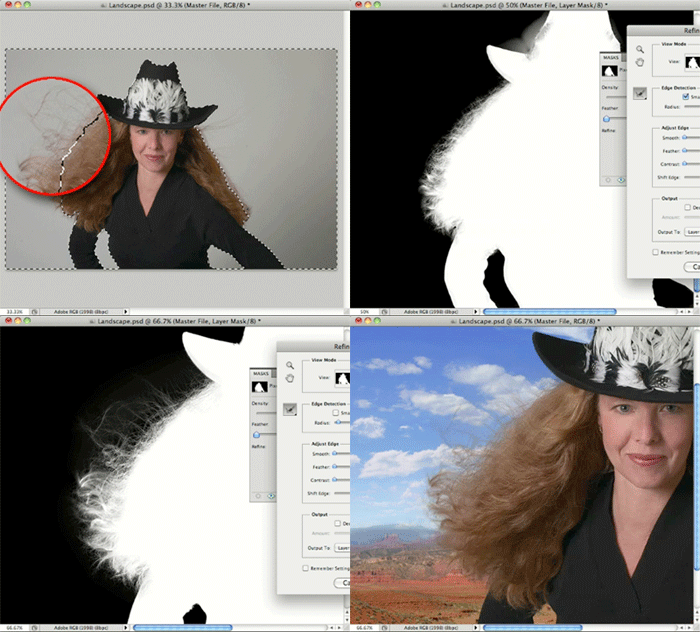
The hardest part about masking has always been selecting areas of transition, such as flyaway hair on a portrait. The new masking tools in Photoshop CS5 are so easy to use that even novices can get impressive results: Just select a subject using the Quick Selection tool, turn that into a mask with one click, hit the Refine Mask buttons, and move two sliders.
However, if you’re willing to do just a little manual work, your areas of transition will go from impressive to top-notch professional, as this animation demonstrates:
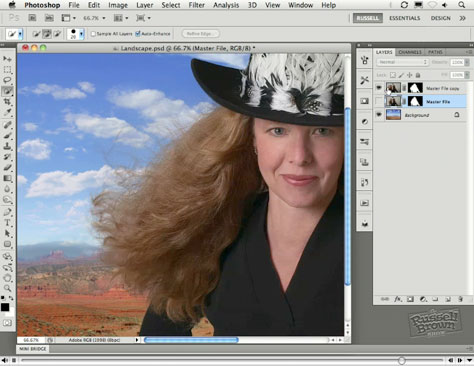
To open the QuickTime tutorial video in a separate window, click the screenshot below:
To view the video on an iPhone or iPad, click here.
This article was last modified on January 6, 2023
This article was first published on September 1, 2010
Commenting is easier and faster when you're logged in!

Recommended for you

Photoshop Pie Crust Effects
You may not be a whiz in the kitchen, but all you need is an understanding of Ph...
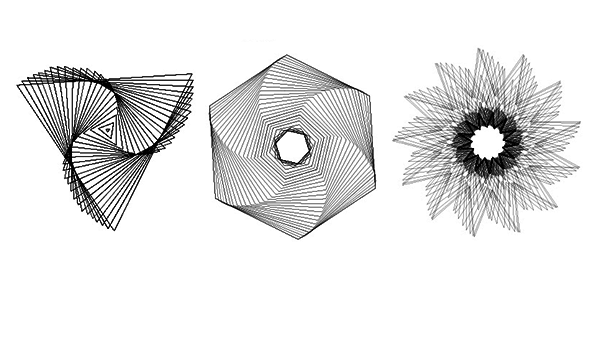
CreativePro Tip of the Week: Drawing Instant Abstract Art in Illustrator
This CreativePro Tip of the Week on creating instant abstract art in Illustrator...

Mastering Photoshop Smart Objects: Layer Comps
If you need to develop several versions of a composition in Photoshop, Layer Com...